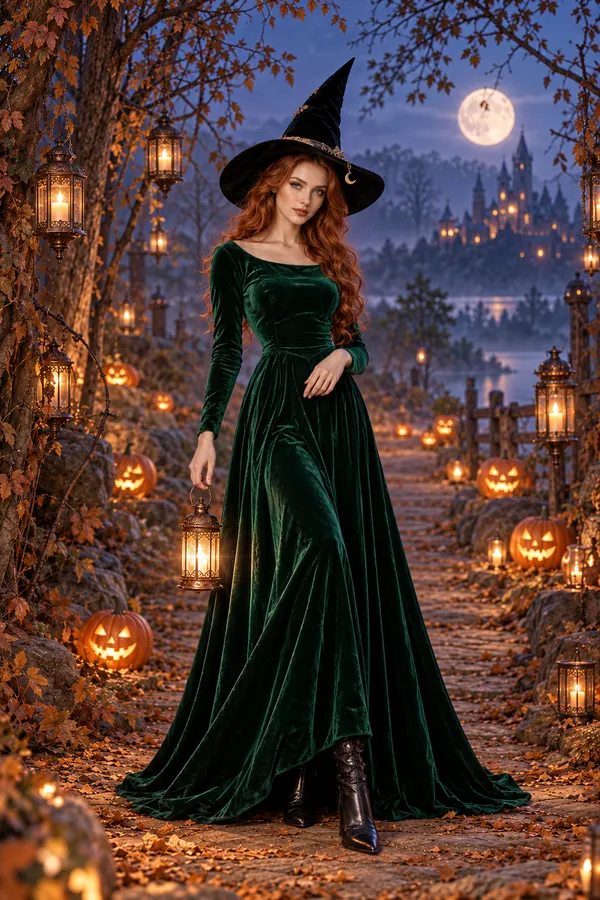
Witch
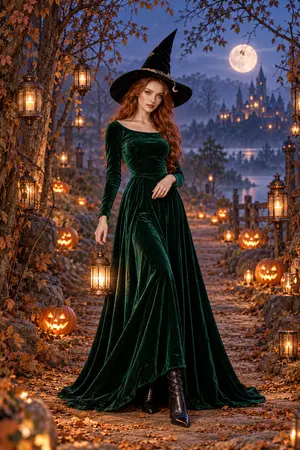
Green velvet and candlelight bring a little mystery to your evening portrait.

Upload your photo and choose a Halloween look.
Your photo
Describe the outfit, lighting or setting you want to explore.
AI style concepts, not results from this editor.
One photo of you, redrawn for the night. This is not a filter layered on top: the editor takes your picture as the reference and rebuilds the outfit, lighting and background around you, following the notes you write in the prompt field.
Everything starts from one clear photo. You pick one of the four looks, add details such as velvet fabric, candlelight or a misty window, and the result comes back as a new portrait you can review and download.
Your Halloween look in three simple steps.
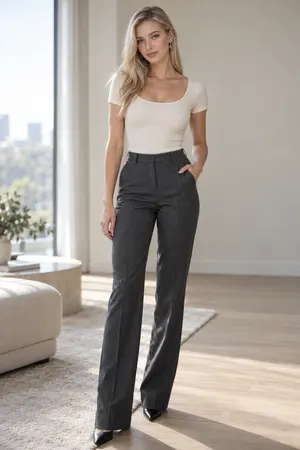
Use a clear image — face visible, outfit in frame. This photo decides who the night belongs to.
Pick a look, then add one detail only you would think of: a fabric, a light, a scene.
Generate, look it over, adjust your notes, and keep the version that stops you mid-scroll.
Explore the styles and choose your favorite.
Green velvet and candlelight bring a little mystery to your evening portrait.
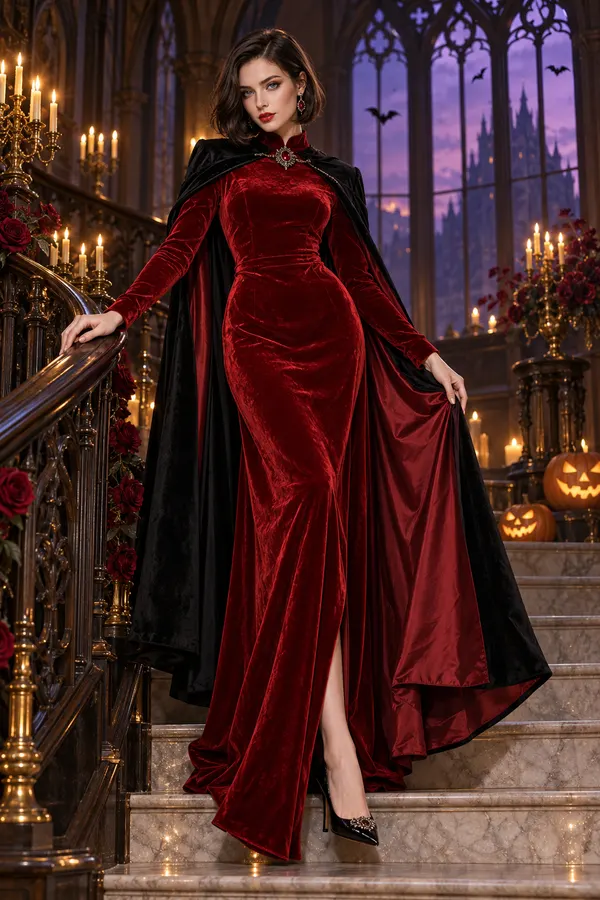
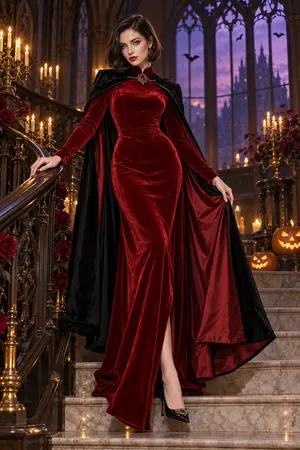
Red velvet and warm shadows give this vampire portrait a dramatic evening mood.
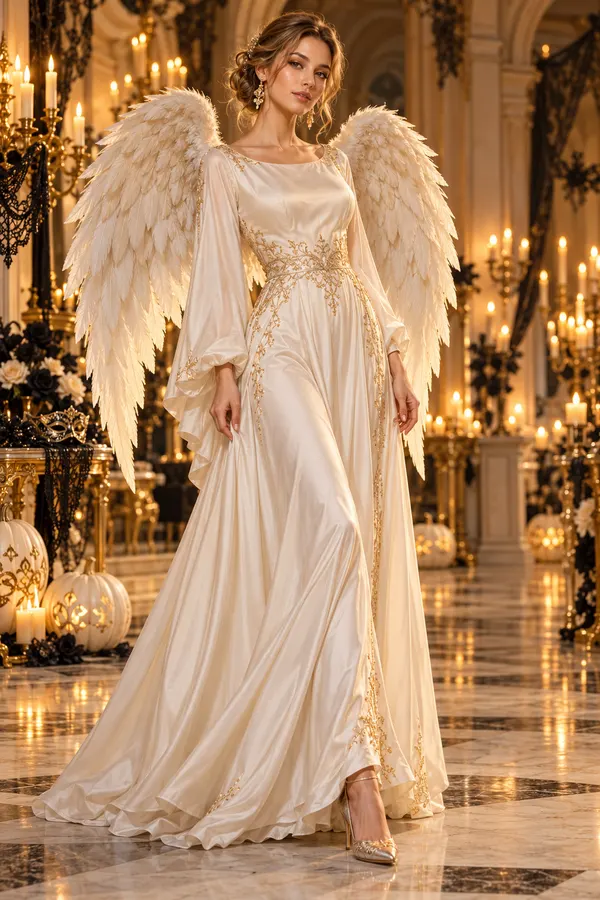
Ivory tones, gold details and angel wings create a soft indoor portrait in warm candlelight.
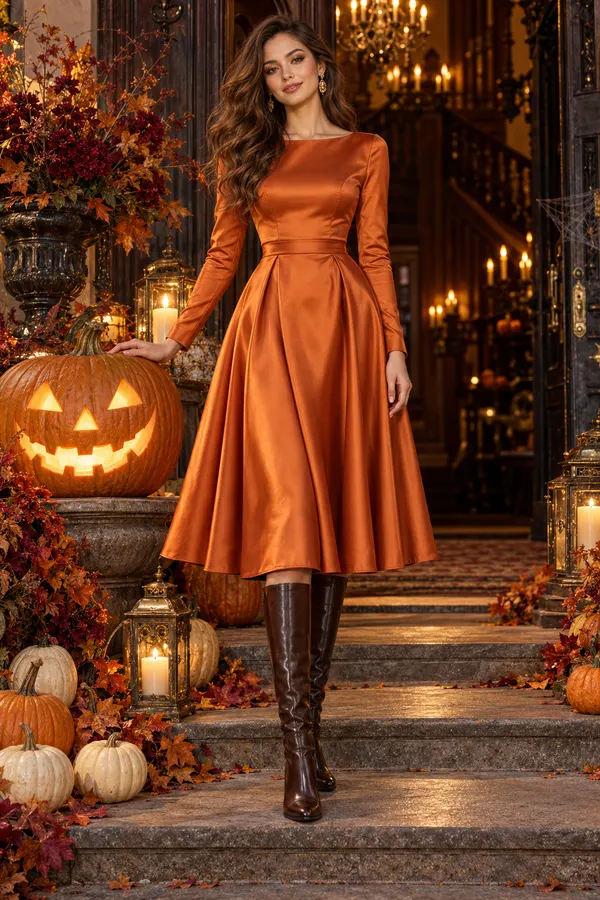
Pumpkin orange and golden lantern light make a warmer, softer Halloween scene.
Use these ideas or write your own.
Green velvet, lace details and a softly lit room with candles.
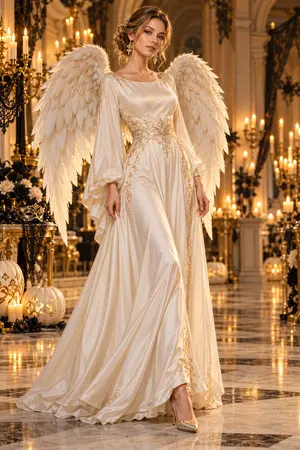
Ivory tones, angel wings and cool moonlight with a softly misted background.
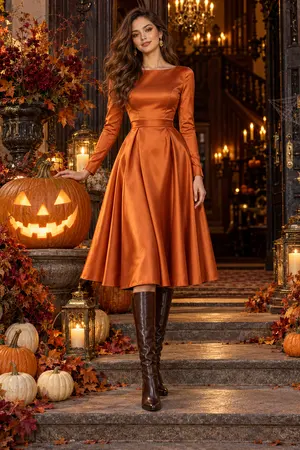
Pumpkin orange, golden lantern light and a relaxed standing pose.
A clear photo helps create better results.
Keep your face clear and easy to see.
Use even light. Avoid dark or blurry photos.
Include the part of your outfit you want to change.
Review face, hands and outfit before sharing.
Quick answers to common questions.
Yes. Start with your photo and choose a look, then describe an outfit or makeup idea in your notes. The AI can change clothing, lighting and the background to create a new portrait based on your reference.
Choose a clear photo with your face visible and enough of your outfit in frame. If you want a wider portrait, use a reference that shows more of your body. Dark, blurred or heavily covered faces give the model less to work with.
Your photo guides the generation, but an exact match is not guaranteed. Facial details, pose or clothing can change. Review the result carefully and adjust your notes or reference photo if you want another direction.
Yes. Use the optional Prompt field for a fabric, color, setting or framing idea. The suggestions below add to your existing notes. Browsing a concept does not apply it; use Try to select that look for your draft.
Generation uses credits. Check the cost shown in the editor for your selected settings before you start. Choosing a look, adding notes or returning to your draft does not submit a generation.
Use the retry action shown in the editor. Your photo, chosen look and notes remain in your draft so you can review them or make changes. Check the displayed cost before starting another generation.
Yes. The portraits you generate are yours to share on social media, messaging apps or a personal page. Follow each platform's rules, and mention that the picture is AI generated when that matters to your audience.
A filter only lays effects over your original pixels. Here the AI rebuilds clothing, light and scenery around your reference photo, and the prompt field lets you steer those parts with plain sentences before you generate.
Return to the editor and make it yours.