
Take the layers off — or dress the moment up
From one photo to the after
The jacket. The dress. What stays, what goes, how far. Write it in the prompt — the AI removes clothing exactly your way, as far as your prompt dares. Rewrite it until it’s the one.
The person stays. The clothes go.
Face, hair, the line of the neck, the shape of the hands — untouched. The light stays warm; what’s underneath is warmer than you remembered. Only the fabric slips away.
See before and after, side by side
Before on the left, after on the right. Rewrite the prompt and remove again — as many times as it takes to catch your breath.
How to Remove Clothes from Photo in 3 Steps
Pick the one
One clear photo of an adult. Uploads cost 0 credits. Your favorite is fine — as long as it’s yours, or theirs by permission. Not sure? Start from one of 8 samples.
Write how far
Open the prompt and rewrite it — the layer to take off, what stays, how far it goes. Leave it blank and underwear stays. Write it all the way and nothing is left on it. Output size is fixed; you only pick how many.
Take the after
Check the credit estimate, then generate. Before on one side, the after on the other — keep the one that stops you.
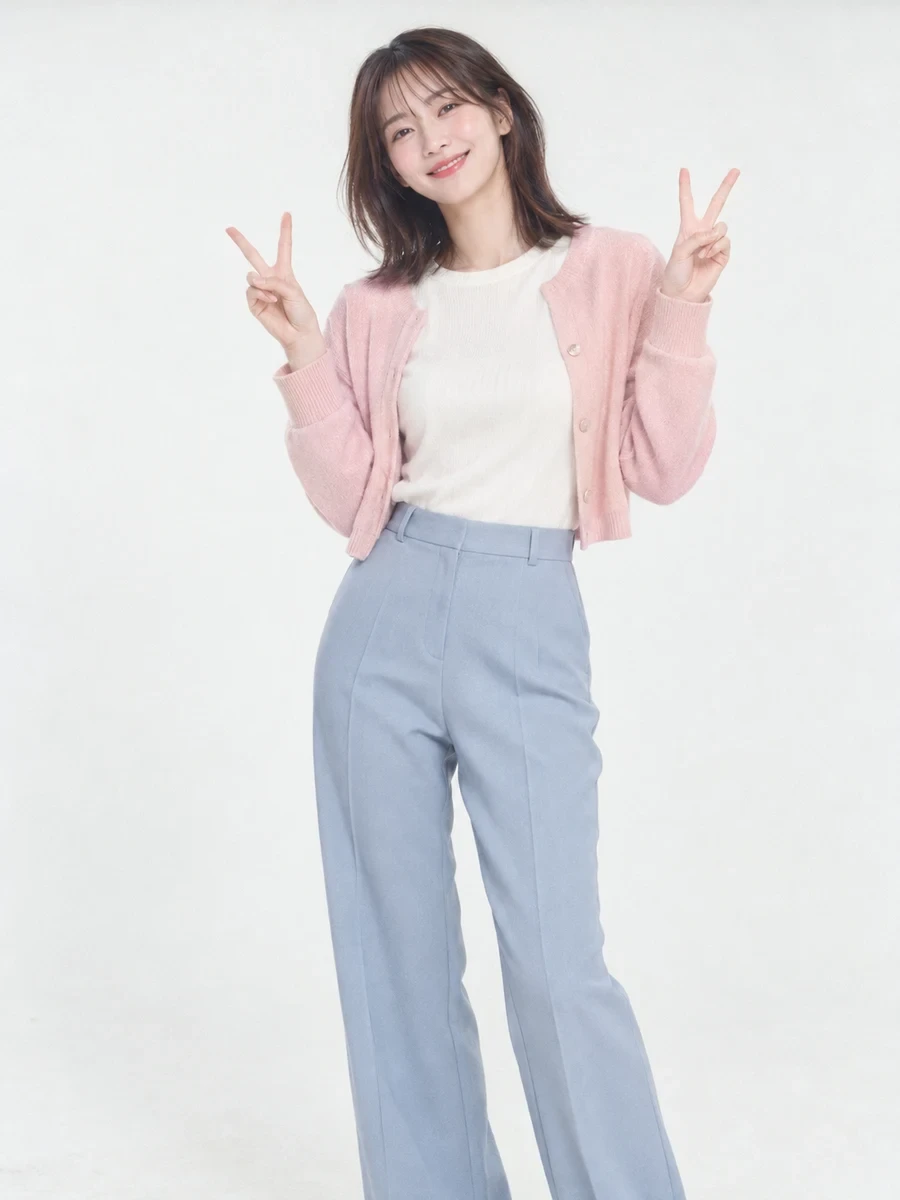
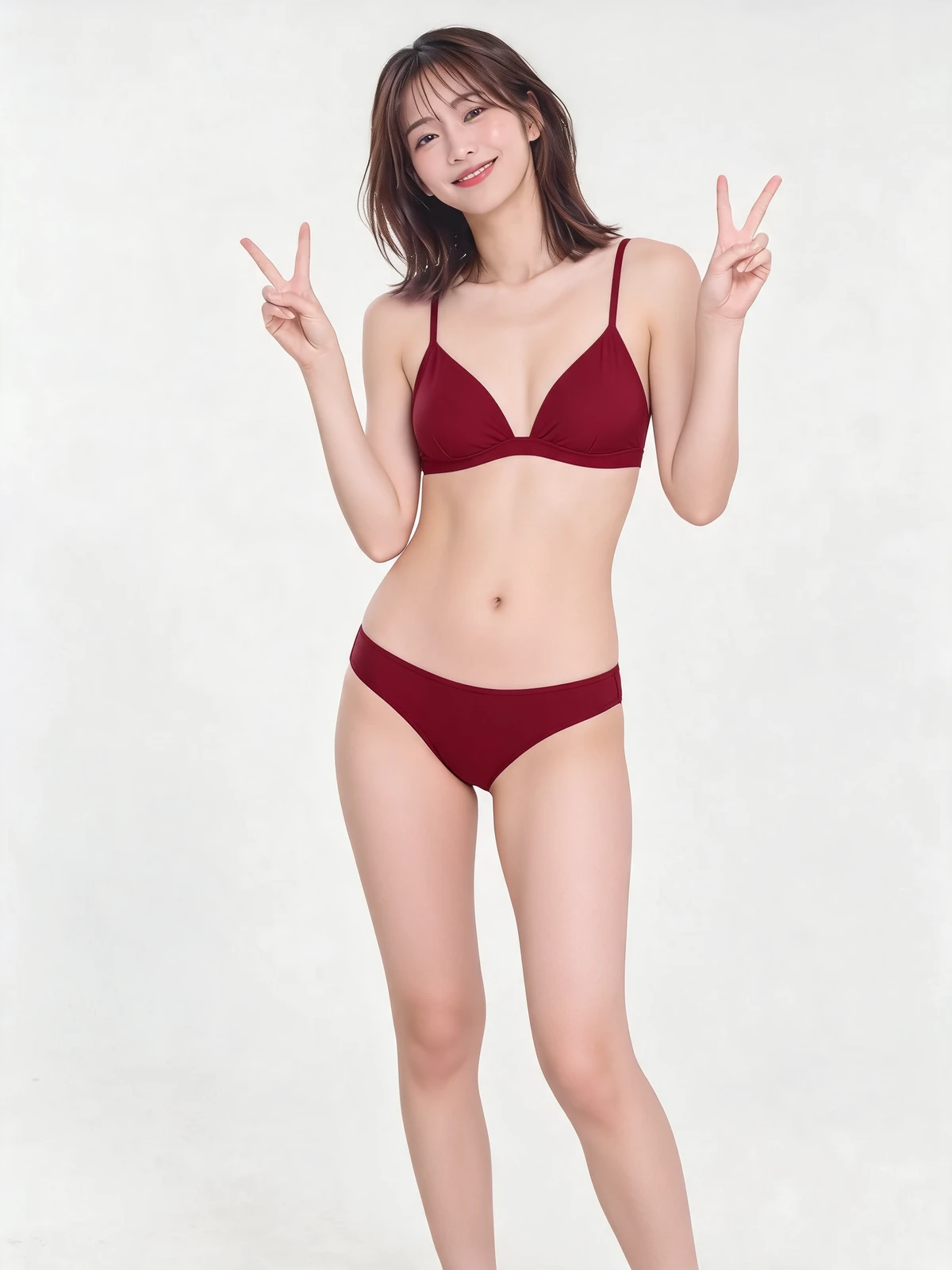
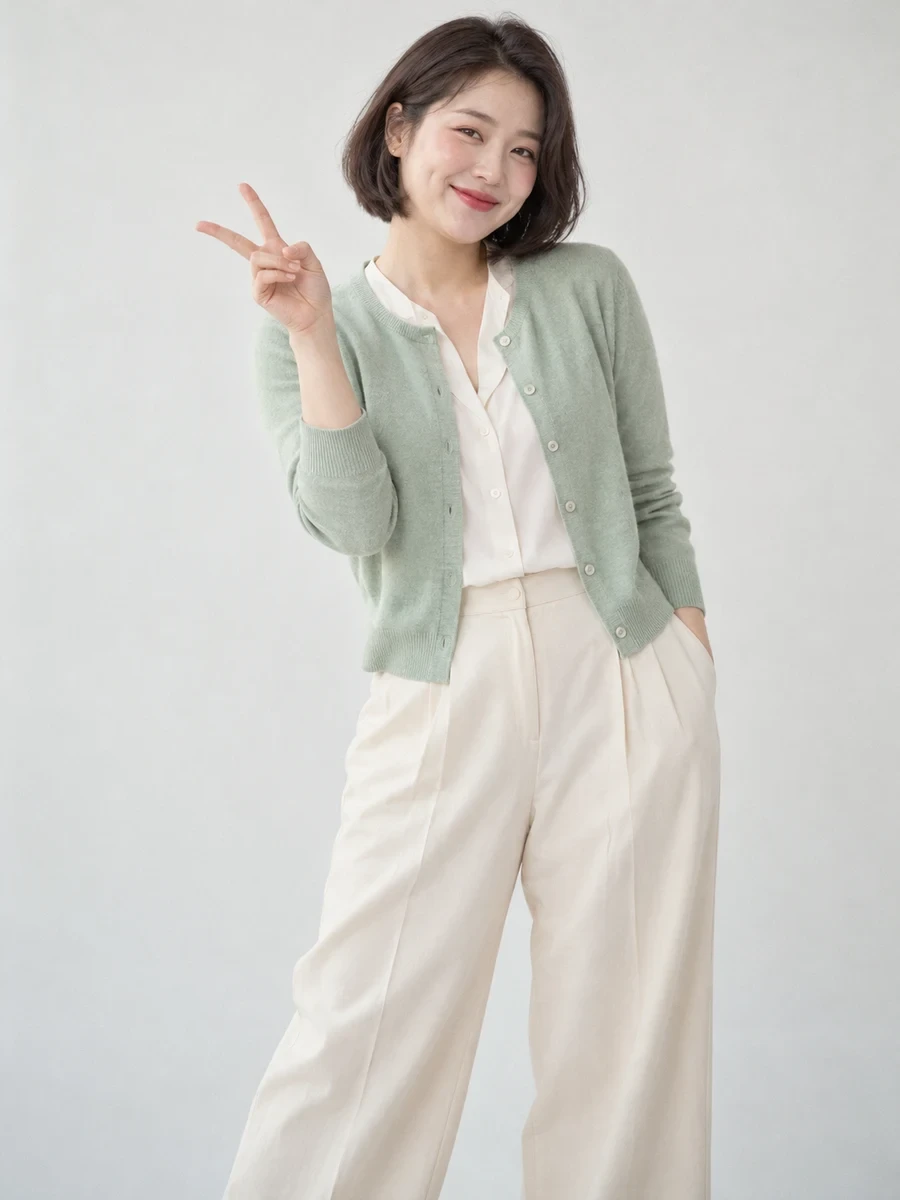
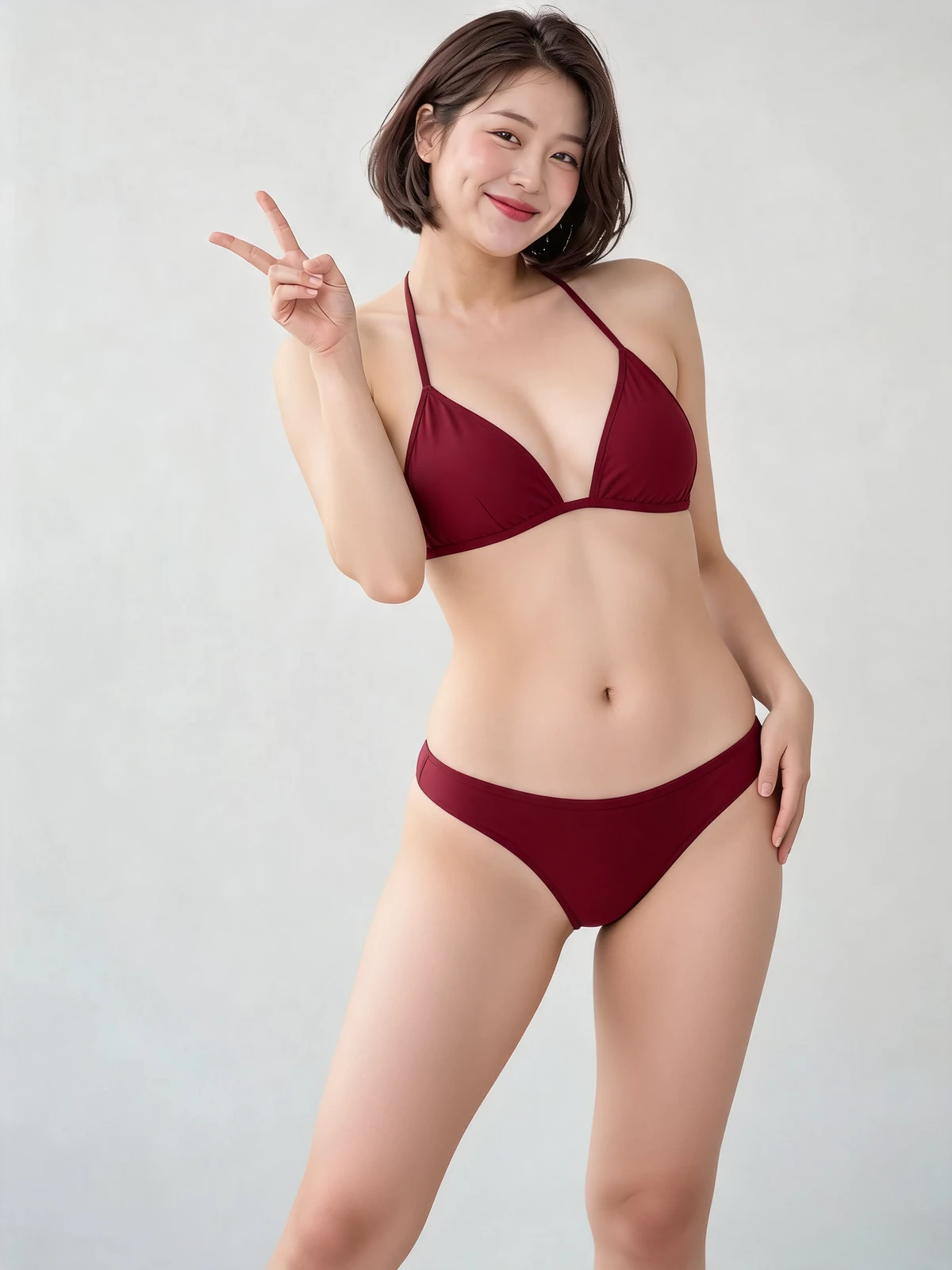
Clothes remover examples: dresses, swimwear and layering
The source images depict original fictional adults. The edited results were generated on 8 October 2026 using custom prompts for opaque swimwear and do not show the current default edit.
Face, hair, pose — untouched
The person you uploaded stays exactly who they are. The AI takes the clothes off, or puts new ones on. One photo, endless afters.
Choose a person photo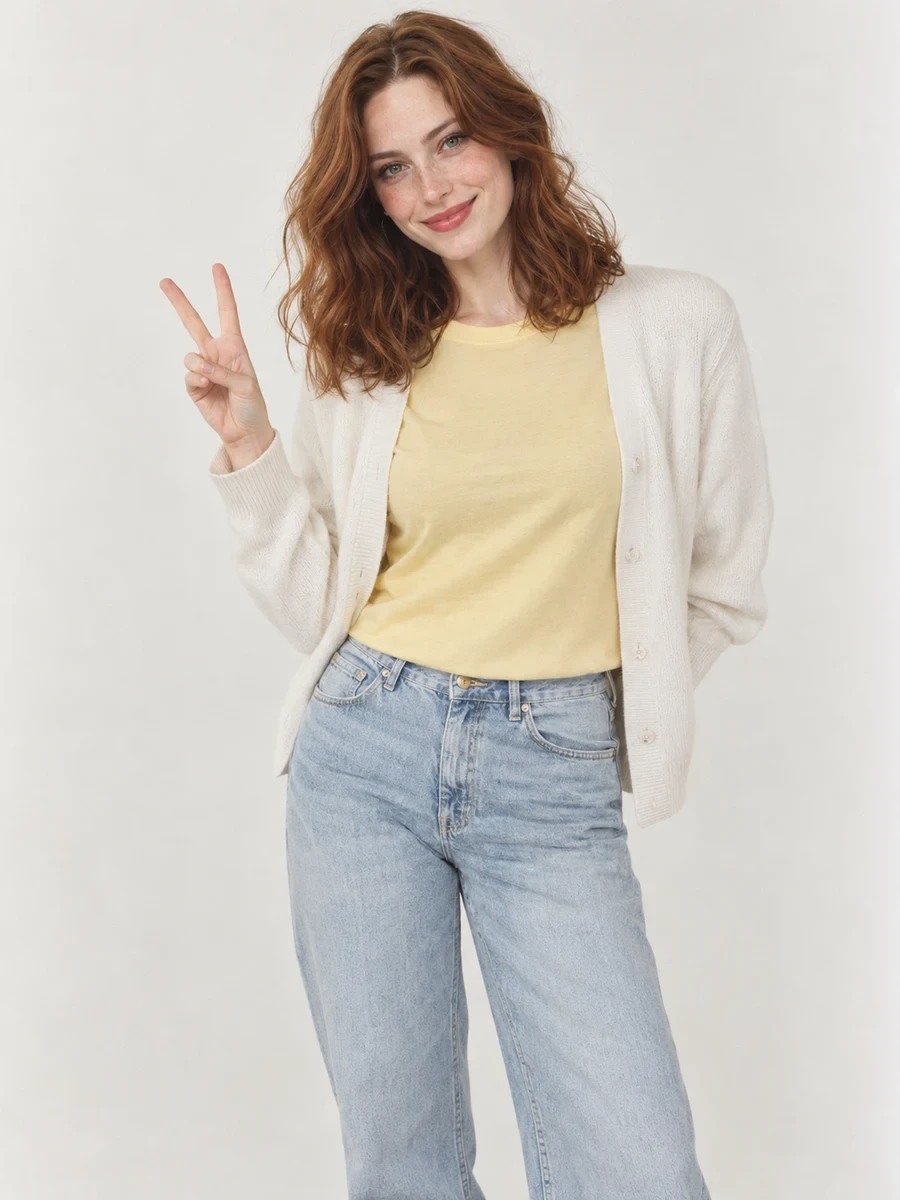
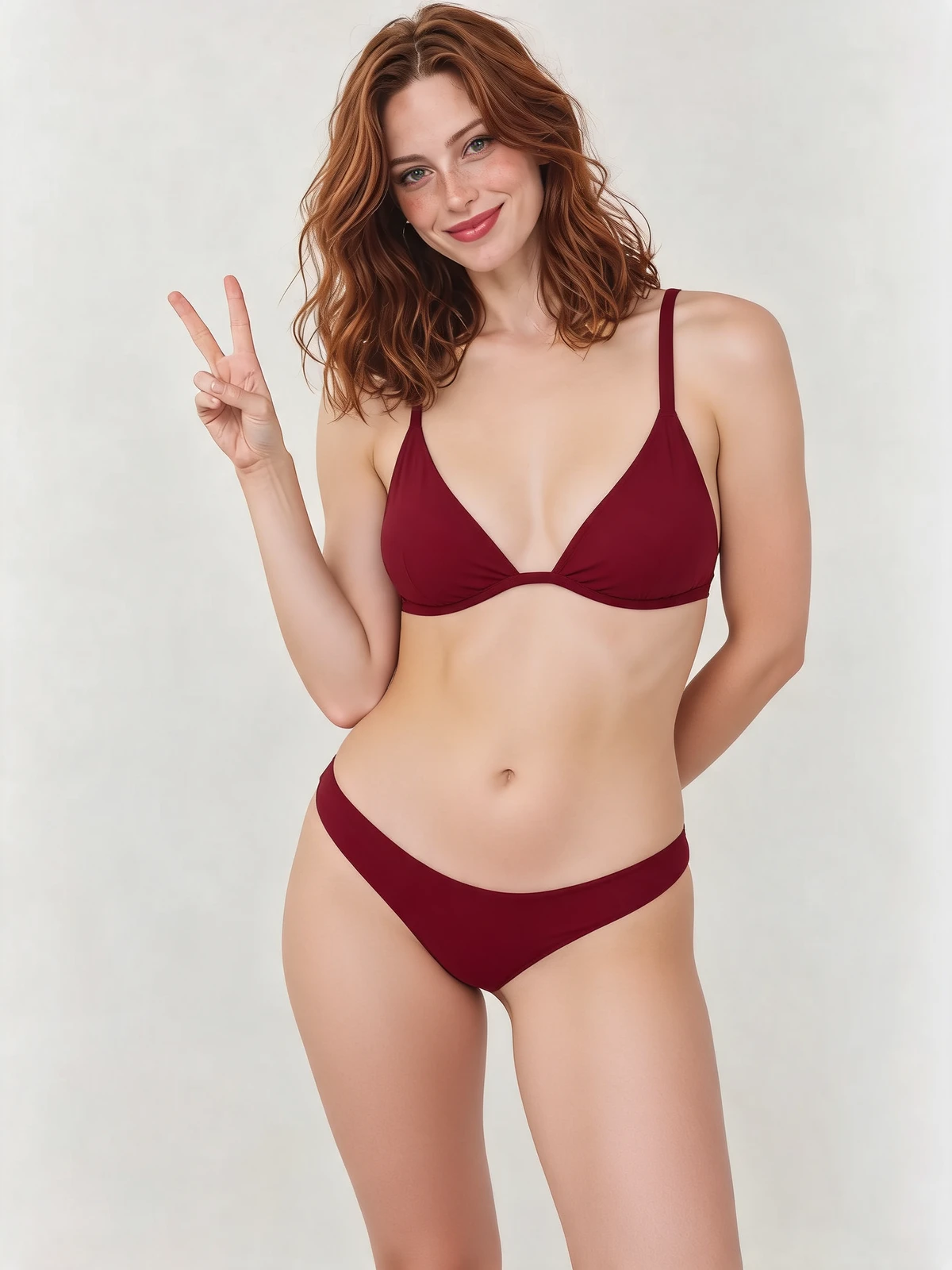
Swimwear stays — or goes
Keep it at an opaque swimsuit look, or write your way past it. A summer photo can always go one layer further.
Describe a swimwear lookAI clothes remover guide
Remove or change clothes in a photo
Upload one adult photo, name the wardrobe change in the prompt, and the model re-renders the clothing area while the face, pose, framing and background stay anchored to your file. One image in, one image out: no mask painting, no layered PSD, no second app.
It is strongest at three jobs: swapping an outfit, removing a single layer to show what sits underneath, and converting a full outfit into swimwear or underwear. It does not change who the person is or invent a different body, and it does not produce motion. The result is a synthetic render rather than a photograph of something that happened: use your own photo or one you have explicit permission to edit.
Choose the right tool for your edit
Clothes remover: name the garment you want removed or changed, and any layers you want to keep. The result is AI-generated.
Outfit changer: use this when you want to try a different outfit.
Object eraser: remove a bag, logo or another object and fill the area with background.
Free clothes remover in the browser, no app install
Only the looking is free. Opening the editor, uploading a photo and picking a sample all run at 0 credits, so you can write the prompt, switch the clothing state and watch the estimate move before spending anything. Generating the image uses credits, and the price is visible before you submit.
There is no separate clothes remover app to download. The editor runs in the browser on iPhone, iPad, Android, Windows and macOS, so "clothes remover app" searches land on the page itself rather than a store listing, and the only thing that changes between devices is the file picker.
On a phone the flow is three taps: pick from the camera roll, type the prompt with the system keyboard, generate. Swapping the photo keeps the prompt, so two shots of the same outfit can be compared without retyping it.
Undress, nude and bikini requests: what you can do here
Undressing, switching to swimwear and rendering a nude version are the same manual edit on this page: you name the clothing state you want and the model redraws the person in your own photo. Nothing happens automatically, and every request runs on the photo you upload.
These are the outcomes this editor supports today:
- Bikini or swimsuit: name the cut, colour and coverage, for example "navy bikini, classic cut, full coverage", and the model renders that swimsuit on the same person, pose and scene.
- Underwear or lingerie only: strip the outer layers and keep a matching bra-and-panties set. This is the most stable undress request, because the model still has a coverage reference.
- Fully nude: ask for every layer removed and no garment stays. The model has to invent the skin your photo never showed, so this is the hardest request and the one that most often needs a second attempt.
- Topless or bottomless: clear the top half and keep the rest, or the reverse. Say which half stays clothed.
- Exposed chest, hips or legs: if only one area should be bare, name that area and say that everything else keeps its clothing.
- Outfit swap instead of removal: replace the clothes with another outfit, including opaque swimwear and lingerie looks when you want the coverage kept.
What comes back is a generated image, not the real body behind the clothes. It is a synthetic render, not a photograph of a real event. The model invents what your photo never showed, so hands, garment edges and skin boundaries are where it fails first; check them at full size before you use the image.
The limits do not move: adults only, never minors, your own photos or photos you have permission to edit, and no non-consensual or impersonation use.
Clothes removal for video: move the edit into Seedance
This page outputs a single image. A clip — what "clothes remove video" and "ai clothes remove video" actually ask for — is built in the Seedance video workspace from a start frame, in one of three modes: Text to Video, Reference To Video or First & Last Frame.
The workflow that holds quality: finish the still here, then upload it to Reference To Video as the first frame, or to First & Last Frame when the motion has to land on a specific end pose. Adult NSFW clips are allowed in that workspace, so the request does not need to be rewritten or disguised.
- Send the fixed still, not the source photo. The video model copies whatever the frame already contains — broken hands, soft garment edges, a warped background — and repeats it in every frame.
- Write motion, not clothing. One sentence about what moves (the camera pushes in, the person turns, the fabric settles) beats a second undress instruction, which only makes the frames flicker.
- Change one variable per clip. Lock the frame, then the motion, then the end pose; re-rendering from a corrected frame is cheaper than repairing a broken clip.
The limits carry over: adults only, your own footage or footage you have permission to use, never minors, and never non-consensual imagery.
Open the Seedance video workspaceWhy an AI edit looks wrong, and how to fix it
The failures below come from two causes only: an instruction the model can read as optional, and pixels the source photo never contained. Fix the first by stating the end state instead of the wish — "remove every piece of clothing, no fabric, no straps, no swimsuit shell" — and the second by changing the photo rather than the wording.
- Half-undressed result: the verb was negotiable. "Reduce", "open" and "reveal" leave the model an exit; "remove completely" does not. Keep the verb and the end state in the same sentence.
- One garment survives: the model keeps what you did not name. Enumerate the leftovers — bra, straps, waistband, sleeves, swimsuit shell — and close with "none of these remain".
- Edges turn to mush: the source edge was already soft. Crop closer before uploading; a tight crop with a hard garment-skin boundary renders cleanly where a downscaled full-frame shot does not.
- Hands and hair break: they sat on top of the removed area, so the model had to invent them from nothing. Either keep that layer clothed ("keep the bra, keep the hands") or pick a frame where both hands are clear of the torso.
- Face or pose drifts: a competing instruction outvoted the lock. Write "keep the exact same face, pose, camera angle and background" first, then delete every other sentence that touches the person.
- Plaid, lace and logos smear: they need more pixels than one render carries. Raise the output size, or run two passes and keep the cleaner one.
If the second pass is still wrong, stop rewriting. Change one input instead: a sharper original, a tighter crop, or a background with fewer edges. Rewording buys a stretch of the prompt; the photo fixes the rest.
What AI clothes removal can and cannot do
- The face, pose and background are guided by your photo, but exact preservation is not guaranteed.
- Hands, hair and jewellery that cross the clothing area can produce broken edges or warped details.
- Logos, plaid, lace and fine patterns may need several attempts before they look consistent.
- Output quality depends on the uploaded photo, the prompt and the selected resolution.
- Results are visual concepts, not garment sizing, tailoring or e-commerce product photography.
- A see-through X-ray effect (searched as "x ray cloth remover") is not what this editor produces: it changes the garment from your prompt instead of revealing layers underneath.
Explore more image tools
AI clothes remover FAQ: removing and changing clothes
What does AI Clothes Remover do?
This page is an AI clothing remover: it takes the clothing off a single photo and generates the after — as far as you write it. You steer with the prompt; face, pose and background stay untouched.
What is the best photo for an AI clothes remover?
Yes. One photo of yourself is enough — as long as the clothing is clearly visible, the AI takes it down to the after. Photos of anyone who hasn’t agreed are out of bounds. And what you make is yours to use responsibly, within the law.
How do the sample photos work?
Yes. Men’s photos work just as well — coats, jackets, layers, all the way down if that’s what you write. The face and body stay his.
How should I write the clothing prompt?
Plain sentences work. Try: “Take off the jacket, keep the underwear.” “Take the whole dress off, all the way.” “Leave the background, take everything else.” Not sure where to start? Pick a sample prompt for the first one — then rewrite it until it sounds like you.
Does choosing a sample use credits?
Uploading costs 0 credits. Generation spends AI credits, and the estimate shows before you run it. You pick the batch size up front — no surprise spend, ever.
Will the person and background stay the same?
Yes. Face, hair, pose, background — all still there in the after. We don’t promise a perfect replica, but the person you know is the person you get.
Can I remove clothes from a photo?
Yes, you can remove or replace clothing in a picture with a prompt. This page is designed for outfit and opaque swimwear edits, not for creating nudity or sexual content.
Can I change clothes in a photo without Photoshop?
Yes. Upload one photo, describe the clothing you want in the prompt and generate the edit in the browser. No manual masking, layers or desktop editor is required.
How do I remove clothes from a photo for free?
Uploading a photo or choosing a sample is free and uses 0 credits, so you can try a free clothes remover flow and write the prompt first. Generating the edit uses credits, and the estimate is shown before you submit, so nothing is charged without a visible price.
Can I generate an edit without signing in?
Generating an edit requires an account. You can read the guide and browse sample previews before signing in. Sign in to submit an edit, and check the credit estimate before generating.
Is a cloth remover the same as a clothes remover?
Yes. "Cloth remover", "clothes remover" and "clothing remover" describe the same edit: changing or removing the garment on a person in one photo. A clothes eraser is different, because it deletes objects or clutter from a picture instead of changing what the person wears.
Is there a clothes remover app for iPhone or Android?
There is no separate app to download. The clothes remover runs in your mobile browser: open this page on iPhone or Android, upload a photo, describe the outfit and generate. The same page works on desktop with no install.
Can I use a Gemini prompt to remove clothes from a photo?
You can reuse a Gemini-style clothing prompt here. Describe the garment, colour, fabric, fit and coverage in one sentence, paste it into the prompt field and generate.
Can this AI undress a person in a photo, or make a nude image?
Yes, within the limits above. The same prompt field covers a bikini or swimsuit change, an underwear-only edit, a topless render and a fully nude render where every garment is removed. Undress, nudify and strip searches all resolve to this one edit. The output is a synthetic render the model invents from your photo, so hands and garment edges can look plausible rather than photographic. Adults only, never minors, your own photos or ones you have permission to edit, and never non-consensual imagery.
Can I remove clothes from a body without changing the face?
The face, pose and background come from your photo, and the prompt decides the clothing layers, so removing clothes from the body keeps the same person as guidance. Exact preservation is not guaranteed; check the face and hands before you use the result.
Can I use the result commercially?
Your rights depend on the source photo, the people in it and the tool terms. Only use images you are allowed to edit and review the current terms before commercial use.
The edited results in these comparisons were generated with Seedream 5.0 Lite. ByteDance Seed describes its image editing behavior:
the model maintains consistency in non-edited areas more stably
By AI Image GenUpdated:
Tonight, take one photo all the way
Yours — or one you have permission to edit. The photo you’ve been thinking about. Say how far, and the AI takes it off quietly, exactly that far. One photo. Tonight. All the way, if that’s what you write.
Pick a photo and remove